Adding Item Costs
Item costs are what you paid for each item you sell. Vendsta uses them to work out your profit.
Default postage and packaging
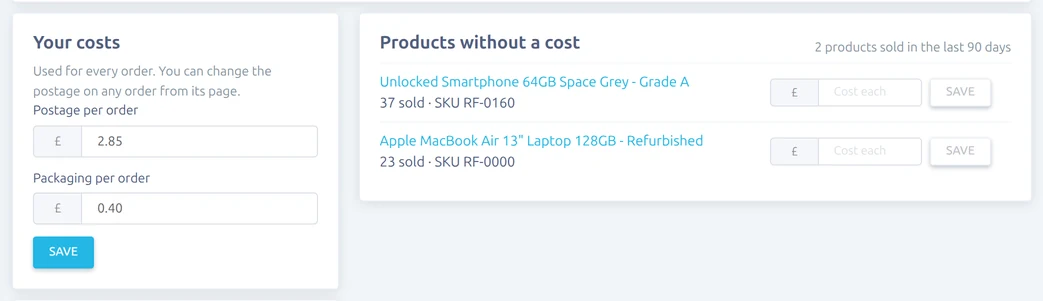
On Reports → Profit, Your costs sets the postage and packaging cost used for every order. You can change the postage on any single order from its page.
Adding costs one at a time
Products without a cost lists the products you've sold in the last 90 days that don't have a cost yet, best sellers first. Type in a cost and press Save.
For listings with variations, each variation can have its own cost. A variation without a cost uses the listing's cost.
Importing costs from a spreadsheet
- Under Import costs, download your products as a spreadsheet. It lists every listing and variation with its item number, SKU, title and current cost.
- Fill in the cost column. Leave a row's cost empty to skip it.
- Import the file.
Rows are matched by item_id (plus variation for variations), or by sku if there's no item_id. Costs written with a comma, such as 4,50, are fine. After importing, Vendsta tells you how many costs it updated and which rows it couldn't match.
Past sales
Each sale keeps the cost the item had when it sold, so changing a cost later doesn't rewrite your history. When you add a cost, it's also filled in on past sales of that item that don't have one yet.
When importing, tick Also replace costs on past sales to update every past sale of those items, for example to correct a cost that was wrong.